Guides
Proofread live captions as a team: how the new proofreading desk works
Send one link to your colleagues and up to 8 people can correct live captions at the same time, with every fix reaching the audience at once. A step-by-step guide, from creating the link to rules for the whole talk and working on a phone.
At a live event, captions will get some names, company names and technical terms wrong. Until now only the speaker could fix them, from the console, and one person cannot talk and correct at the same time.
You can now send a proofreading link to your colleagues. Each of them works from their own laptop or phone, listening and correcting as the talk goes on, and the audience sees every fix right away. Up to 8 people can proofread at once without overwriting each other.
This article walks through the whole thing. The screenshots were taken during a real broadcast (a talk in Chinese, translated into English), and the mistakes in them are real recognition errors. They show the Chinese interface; yours appears in your own language.
Before you start
Team proofreading is available on the Pro, Max and Business plans. Only the speaker needs an account. Proofreaders just open the link, with nothing to sign up for.
One thing to know first: proofreading lives and dies with the broadcast. It only works while the broadcast is running, and the speaker's console has to stay open. When the broadcast ends, the link stops working.
The speaker: create the proof link
Once you are on air, find "Proofreading team" in the on-air card of the console, open it, and press "Create proof link".
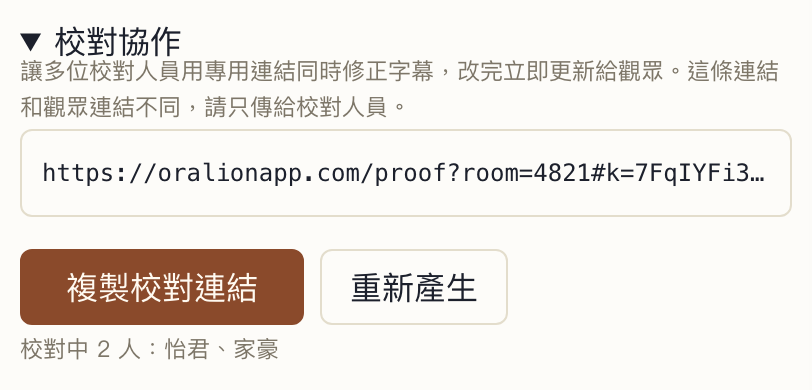
The link is shown in the field. Click it to select all of it, or press "Copy proof link". The line underneath tells you who is proofreading right now.
This link is not the viewer link. Anyone who has it can change the captions, so send it only to the people doing the proofreading and do not post it anywhere public. If you project the console onto a screen, keep this field in mind. If the link does get out, press "Replace link": the old one stops working at once, anyone using it is shown out, and you send the new one to the people who should have it.
Proofreaders: opening the desk
When you open the link you are asked for a name. Other proofreaders see it, so everybody knows who is working on which line.
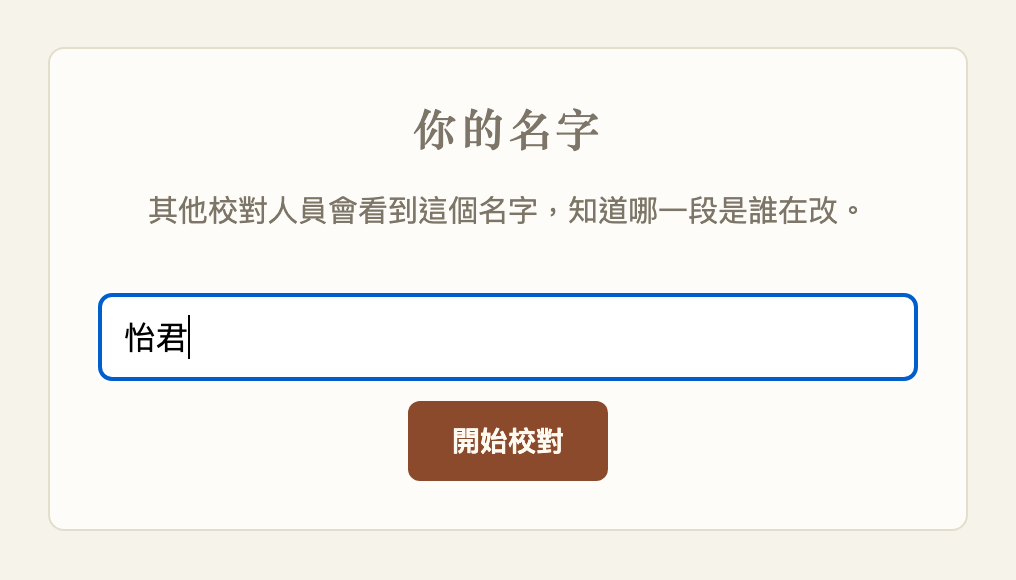
The interface follows your browser's language. You can change it in the top right corner; there are seven languages.
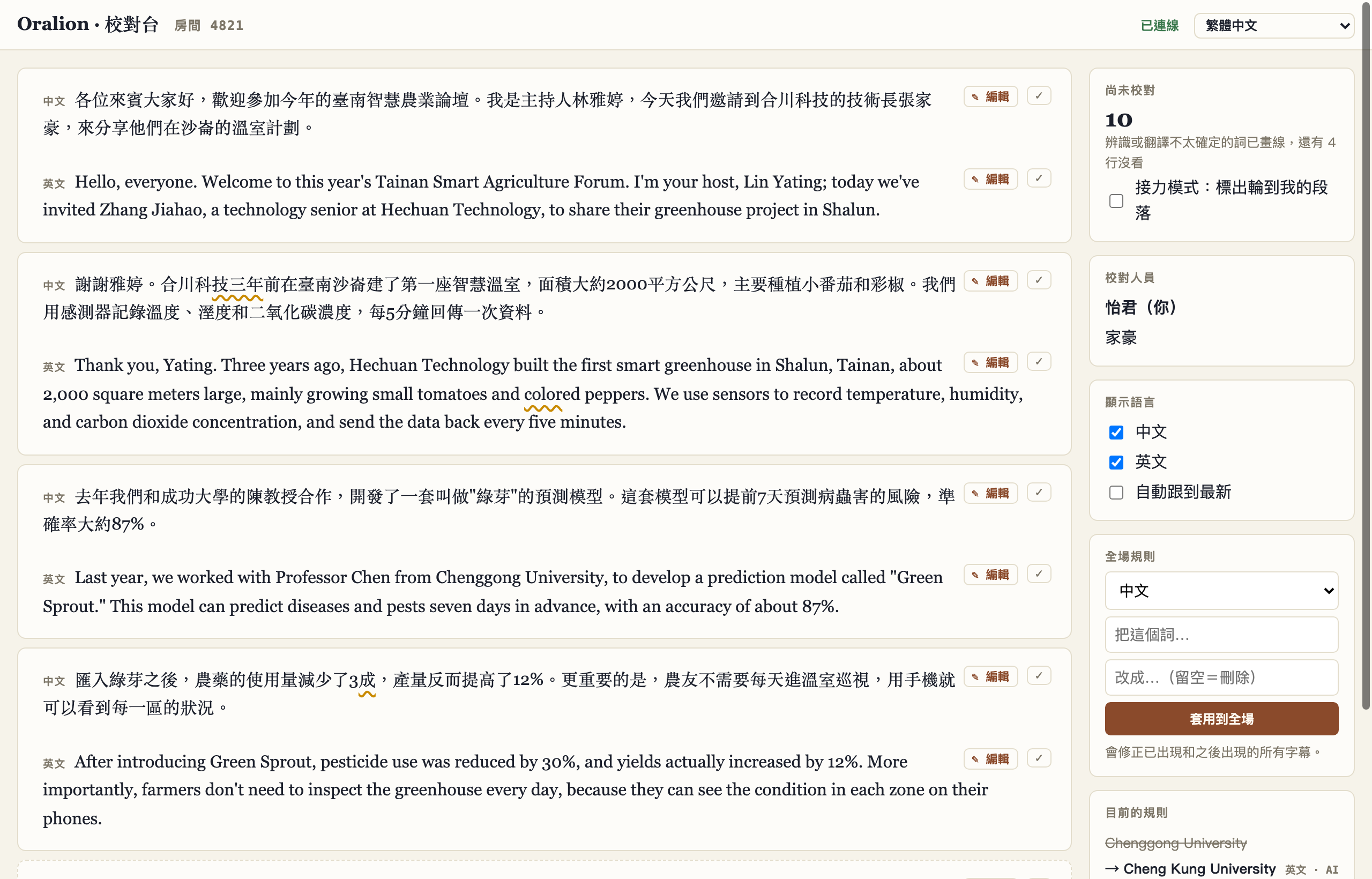
This is what you see once you are in:
The captions are on the left, one block per passage, with one line for each language inside it. The block with a dashed border at the bottom is what the speaker is saying right now. You can edit it too; there is no need to wait for them to finish.
On the right, from top to bottom, you have the number of lines nobody has checked yet, the proofreaders who are online, which languages to show, and the rule for the whole talk, which we will come to. If you are only responsible for English, untick the other language and the page gets much calmer. With "Follow the latest line" ticked, the page scrolls to the bottom whenever a new caption arrives.
Editing a line
Click the line you want to change. It gets a frame around it. That is only a selection; you are not editing yet.
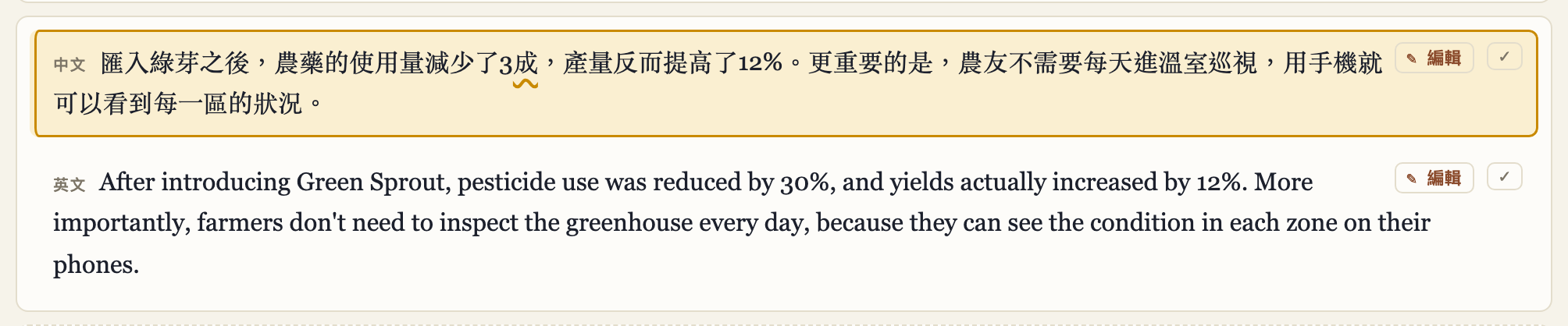
Now press E on the keyboard, or double-click the line, or press the "✎ Edit" button on the right. Any of the three opens the editor.
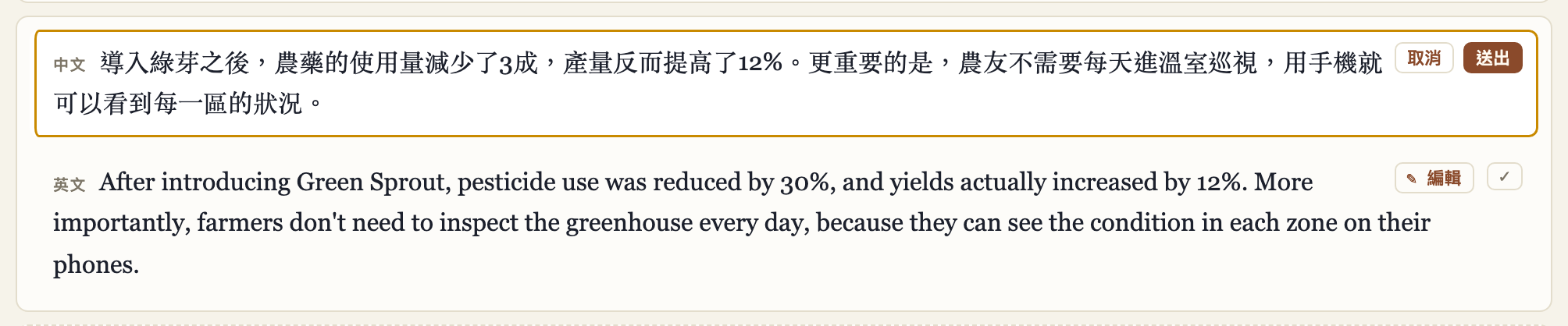
Just type. In the picture above, a word the recognizer got wrong is being changed back to what the speaker actually said. When you are done, press Enter or "Send", and the audience's captions change immediately. If you change your mind, press Esc or "Cancel". You can also simply click another line: your change is sent, not lost.
After sending, the line is marked "Edited" with your name.
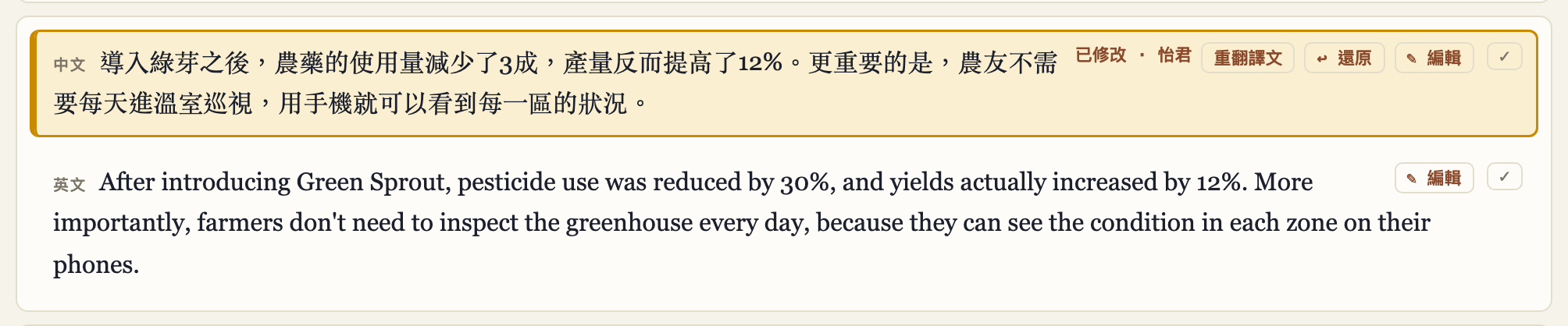
If you got it wrong, "↩ Undo" takes the line back one version, up to five times. Any proofreader can press it, not only the one who made the change.
There is one more button. If the line you changed is in the language the speaker is speaking (the original), a "Re-translate" button appears. Press it and the other languages of that sentence are translated again from your corrected text. If you do not press it, the translations stay as they are. That is deliberate: often you are fixing one misheard word and the translation was already right. A translation somebody has edited by hand is never overwritten by a re-translation.
When somebody else is editing the same line
Only one person can edit a line at a time. If someone is in it, you see their name, the line turns grey, and you cannot open it for the moment.
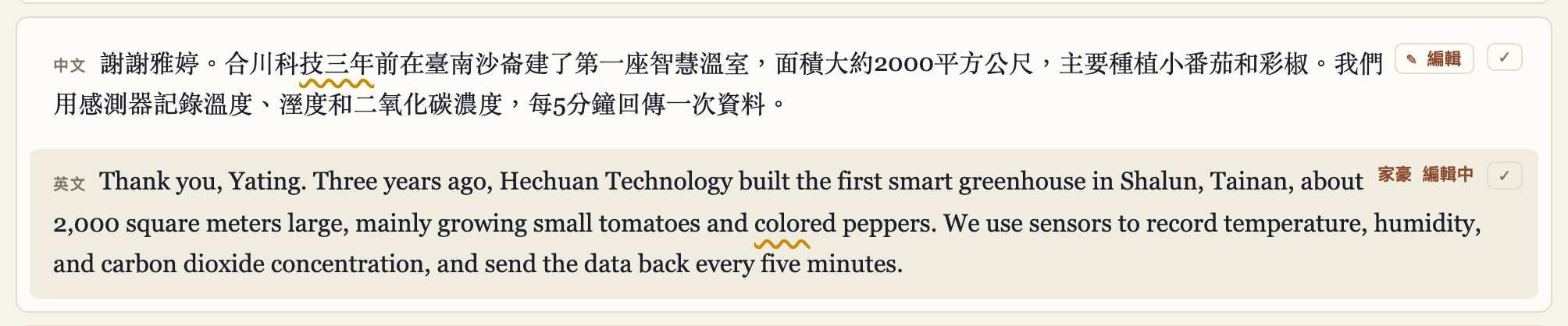
It is released as soon as they send or cancel. If they wander off in the middle, it is released by itself after 45 seconds without typing, so a line never stays stuck.
Confirming a line that is fine
For a line you have read and found correct, select it and press Enter, or press the ✓ on the right. The line gets a tick and your name, the "Not yet checked" number on the right drops by one, and the selection moves to the next line.

So the comfortable rhythm is to go down the page with Enter, and press E only where something is wrong.
One detail: if you tick a line and the speaker then carries on, making that line longer, the tick is taken off again, because you have not read the part that was added.
The same word keeps coming out wrong: a rule for the whole talk
This is the feature that saves the most work. In this broadcast the company is called 禾川, but the recognizer kept writing 合川, which sounds the same. Fixing it one sentence at a time would be tedious, so it goes into "Rule for the whole talk" on the right.
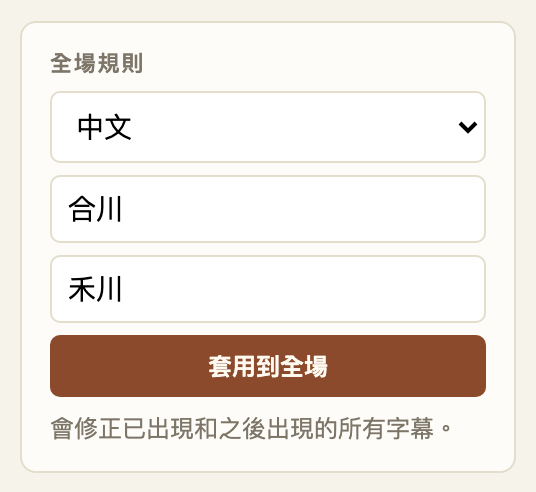
Choose the language, type the wrong word in the first field and the right one in the second (leave the second empty to delete the word altogether), and press "Apply to the whole talk". Every caption that has already appeared is corrected, and so is every one still to come. The other proofreaders get a notice, so everyone knows a rule was added.
Under the form, "Rules in force" lists every rule that is active and says whether a person added it or the AI learned it. Have a look before you add one, to avoid doing it twice.
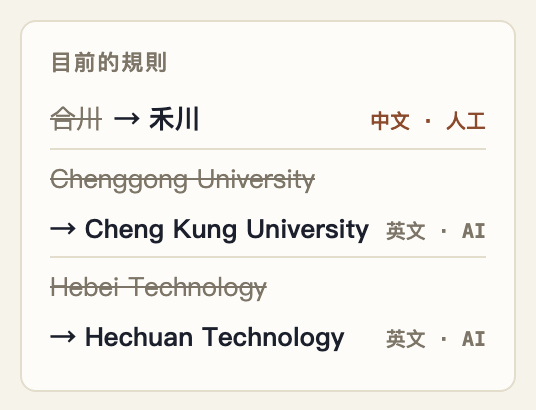
A few things to keep in mind. A rule replaces text literally, so make the word specific enough; a rule for a single letter or character will change things you did not mean. The right word may not contain the wrong one (changing "Forum" to "Forum Hall", say); the system refuses that, because it would grow longer every time the rule ran. And a rule added by a person always wins: the AI will not change it back.
Words with a wavy underline
Some words have an orange wavy line under them. Those are the places where the system itself was not sure it heard, or translated, correctly.
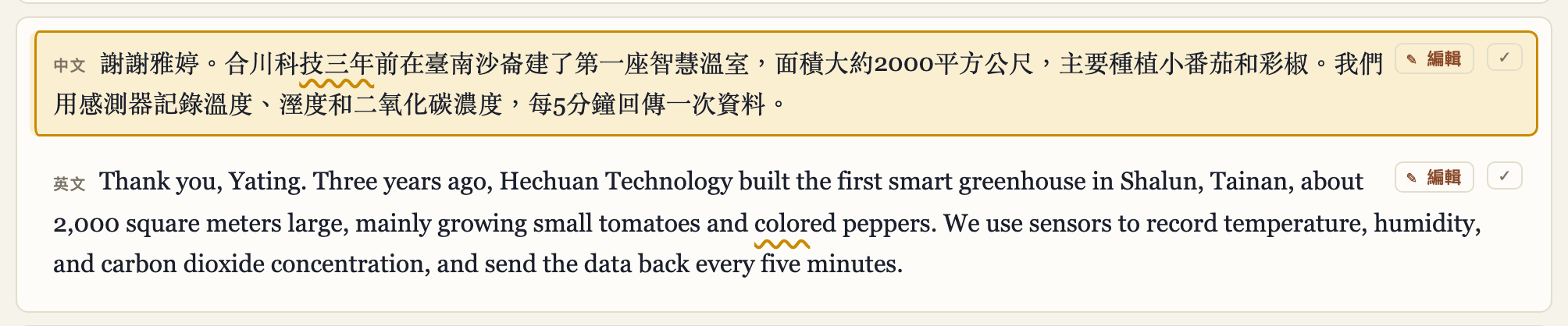
Treat it as "look here first", not as a list of errors. An underline does not mean the word is wrong, and no underline does not mean it is right. The system is quite often confidently wrong, so you still need to read the whole sentence. Once somebody has ticked or edited the line, its underlines disappear.
Sharing the work: relay mode
With three or four people proofreading, the risk is that everybody watches the same passage. Tick "Relay mode" in the top card on the right, and the passages are dealt out in turn to whoever is online.
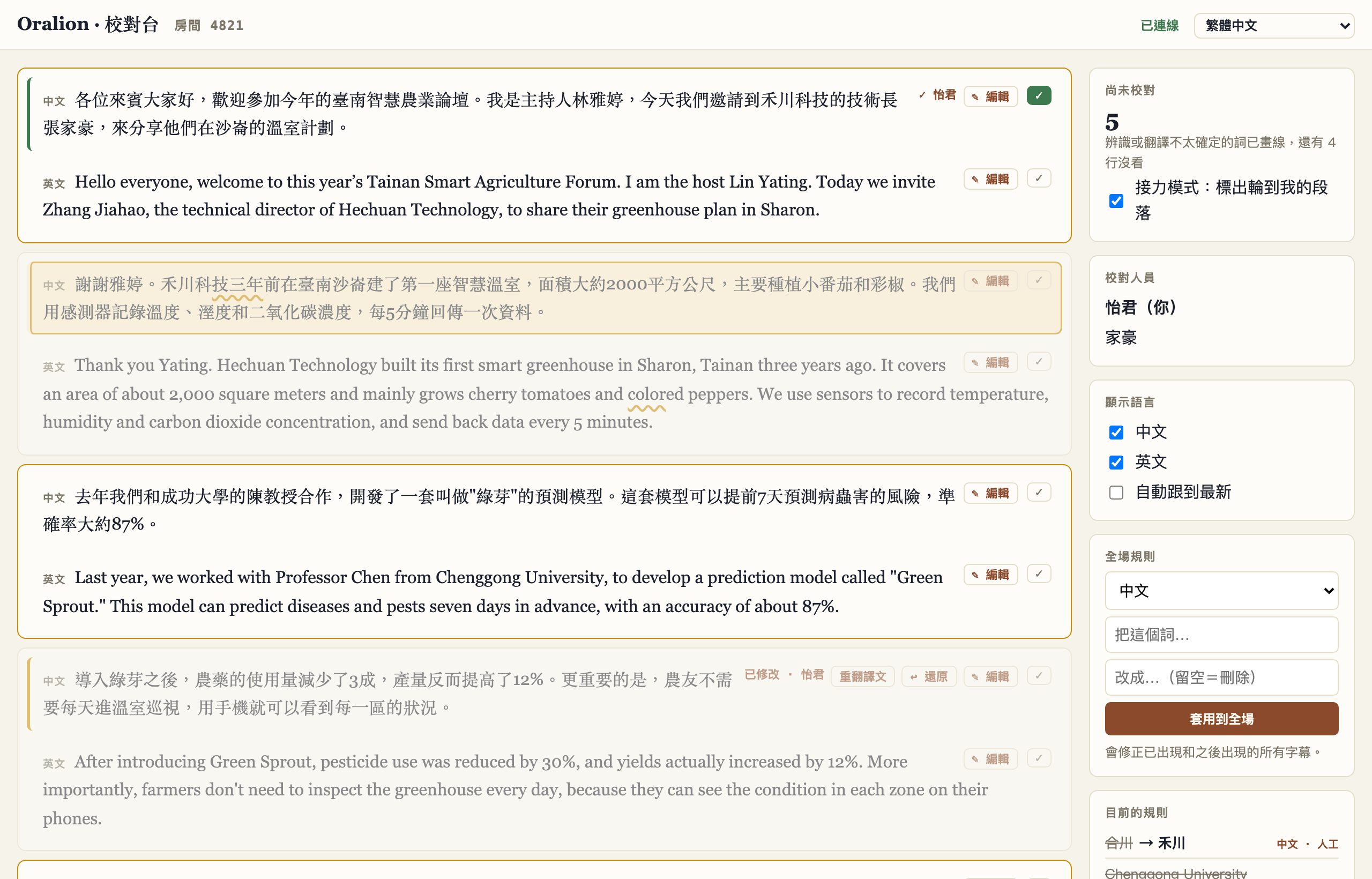
The framed passages are yours and the faded ones belong to someone else. The "Not yet checked" number counts only your own. Each person switches this on for themselves, on their own page. The faded passages can still be edited, so if you spot something a colleague missed, go ahead and fix it. When somebody joins or leaves, the passages are dealt out again automatically.
Working from the keyboard
The desk can be used entirely from the keyboard. J or ↓ moves to the next line and K or ↑ to the previous one, staying within the same language; if no line is selected yet, J starts from the newest one. Enter confirms a line and moves on, and E starts editing. While editing, Enter sends and Esc cancels. Pressing Esc when you are not editing clears the selection, and the page goes back to following the latest line.
If you type with an input method (Chinese, Japanese, Korean), the Enter that picks a candidate is not taken as "send".
Proofreading on a phone
It works on a phone as well. The captions take the whole screen, and "Tools" at the top right switches to the languages, rules and other settings. Press "Back to captions" to return.
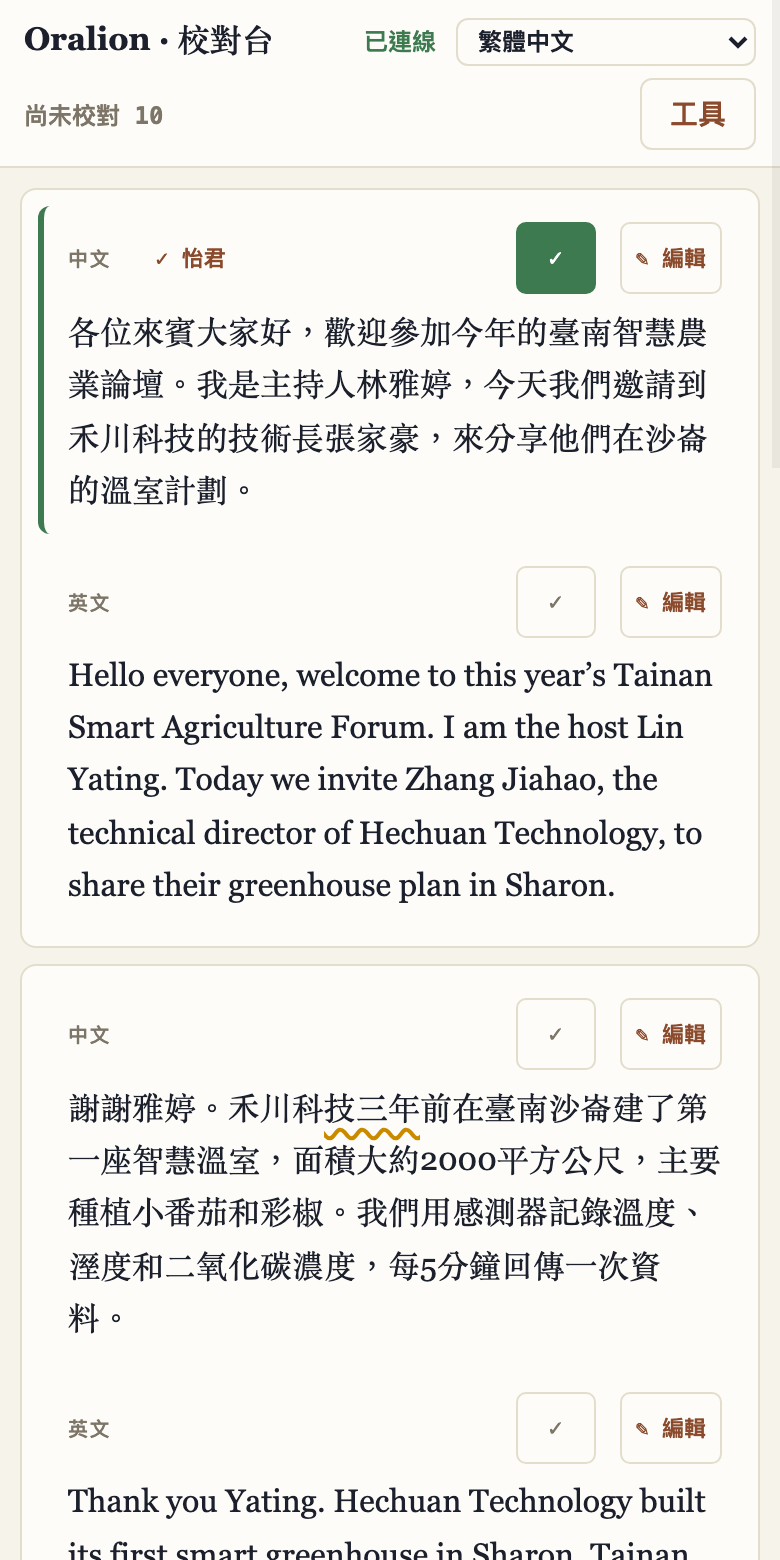
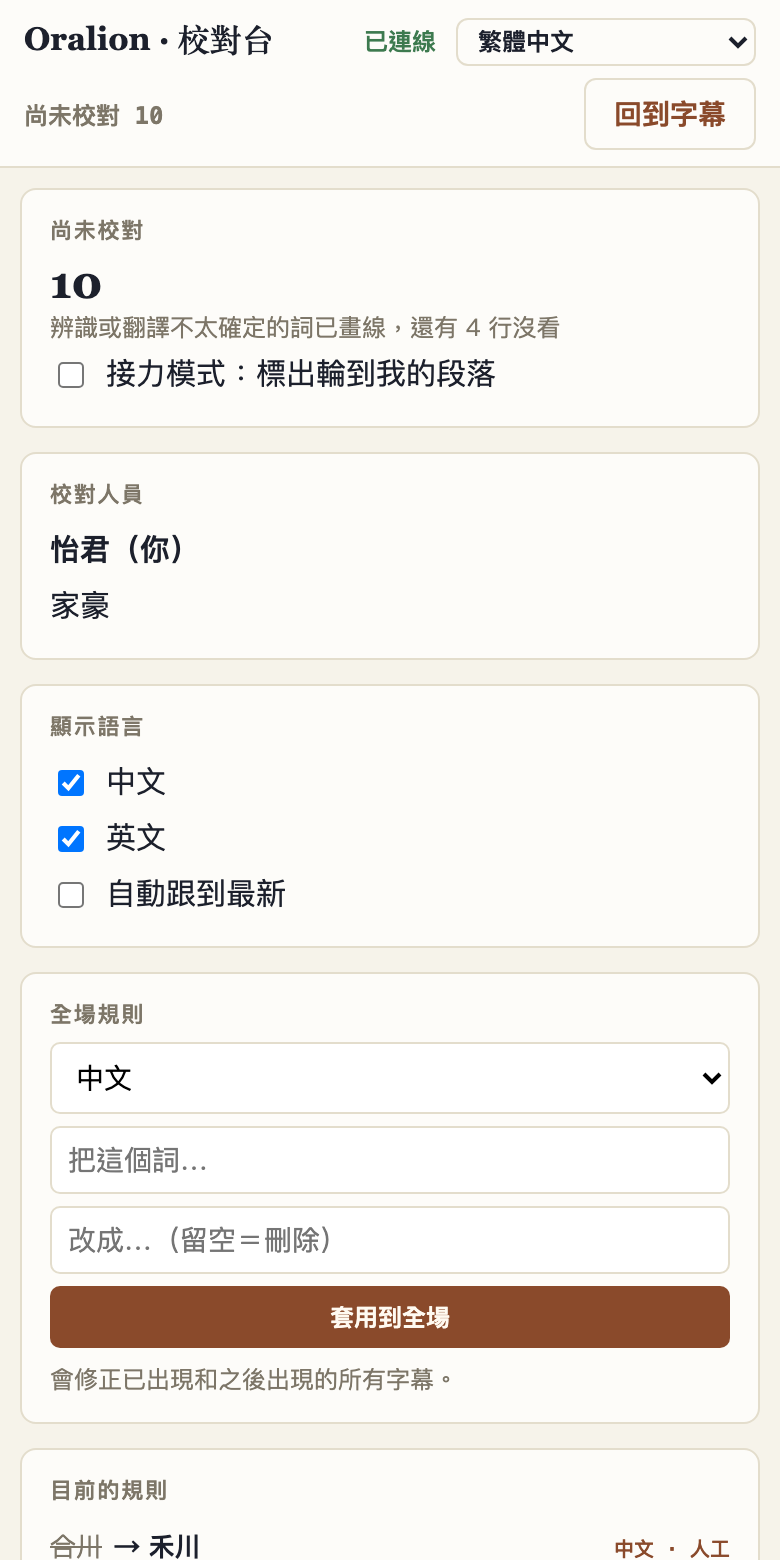
On a phone, use the "✎ Edit" button to start editing, and "Send" or "Cancel" when you are done.
What the audience sees
The moment you send, the audience's captions change. Nobody has to reload. A passage that was corrected by hand carries a small ✎ mark after it.

Questions people ask
The speaker is still talking. Can I edit already? Yes. Anything on the screen can be edited. What is said afterwards is added after it and is not overwritten by your change.
Will the AI correction change my edit back? No. A sentence a person has edited is left alone by the AI correction, by automatic re-translation and by the translation check.
What happens if two of us edit the same line at once? It cannot happen. Whoever clicks first gets the line; the other sees that it is being edited.
My connection dropped. The page reconnects by itself, and what you were typing is kept.
Can I keep editing after the broadcast? No. Proofreading runs with the broadcast, and the link stops working when it ends.
Is the content safe? Proofreading is end-to-end encrypted, exactly like viewing: the key is in the link, and our servers cannot read the captions. That also means the link itself is the key, so look after it like a password.
Do proofreaders count as viewers? No.
If anything about it feels awkward in use, tell us in the feedback form after your broadcast.