Product engineering
From live segments to searchable summaries: How a conversation memory system works
The hard part of transcripts is not saving text, but finding the right decision weeks later. A technical look at IndexedDB, account sync, search indexing and asynchronous summaries in Oralion.

A transcript becomes useful long after the call ends: when you need to answer what was discussed, who promised what, and which decision was actually made.
That requires a different system from simply appending sentences to a text file. A searchable memory needs provenance, ordering, storage boundaries, indexing and summaries to work together. Oralion keeps the original words as the traceable record, then builds a separate summary layer for retrieval and action.
This article explains where the data lives, how the summary is produced, and when account storage is worth enabling.
The smallest unit is a segment, not a document
Live captions are revised continuously. Translations may arrive alongside the original in several languages. Flatten everything into one string too early and information that cannot be reconstructed later disappears.
Oralion therefore stores structured caption segments. Alongside text, a segment carries its session, sequence, language, speaker, timing and revision state. Human edits are marked, and additional translations remain distinguishable from the source language. Those fields let the system:
- rebuild the transcript in speaking order rather than network-arrival order;
- present or download the original and each translation separately;
- preserve human corrections instead of overwriting them during later processing;
- keep one identity for the same conversation across device and account copies.
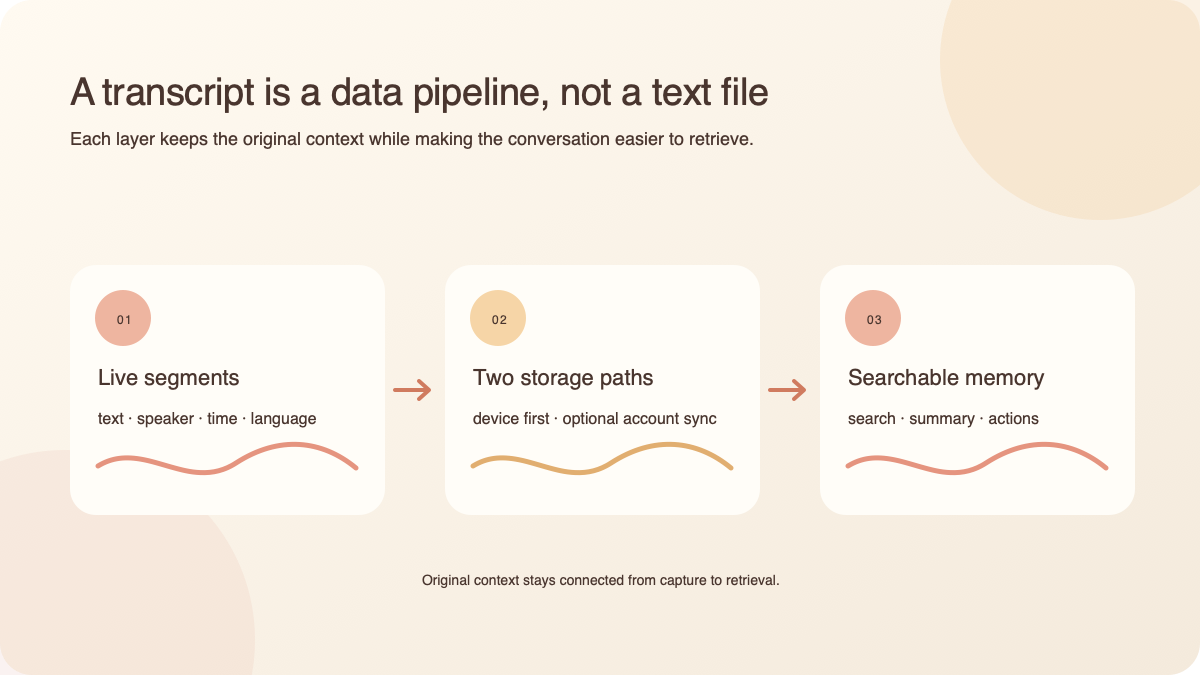
Figure 1: Storage is a path, not one operation. A device record exists first; an account copy is created only after the user explicitly enables transcript storage.
Keep it in the browser first, then choose whether it crosses the account boundary
The speaker page writes the complete session to IndexedDB in the browser. This is separate from the caption history visible on screen: the live interface only needs recent context, while a transcript must retain the complete session for later reading and export.
The device archive keeps the 50 most recent sessions. The cap prevents browser storage from growing indefinitely until a quota failure affects the session being recorded. The trade-off is explicit: local mode creates no server copy, but clearing site data, changing browser or losing the device can remove the record.
When “Save my transcripts to my account” is enabled, the finished broadcast is uploaded as structured segments. Upload does not block the end-broadcast action. If the tab closes or the network drops, the session remains in a retry queue and is attempted again on the next page load. If IndexedDB fails during a live session, an in-memory copy provides a final upload source.
The priority is deliberate: keep captions and the broadcast working first; save afterwards; and make failures visible and retryable instead of pretending they succeeded.
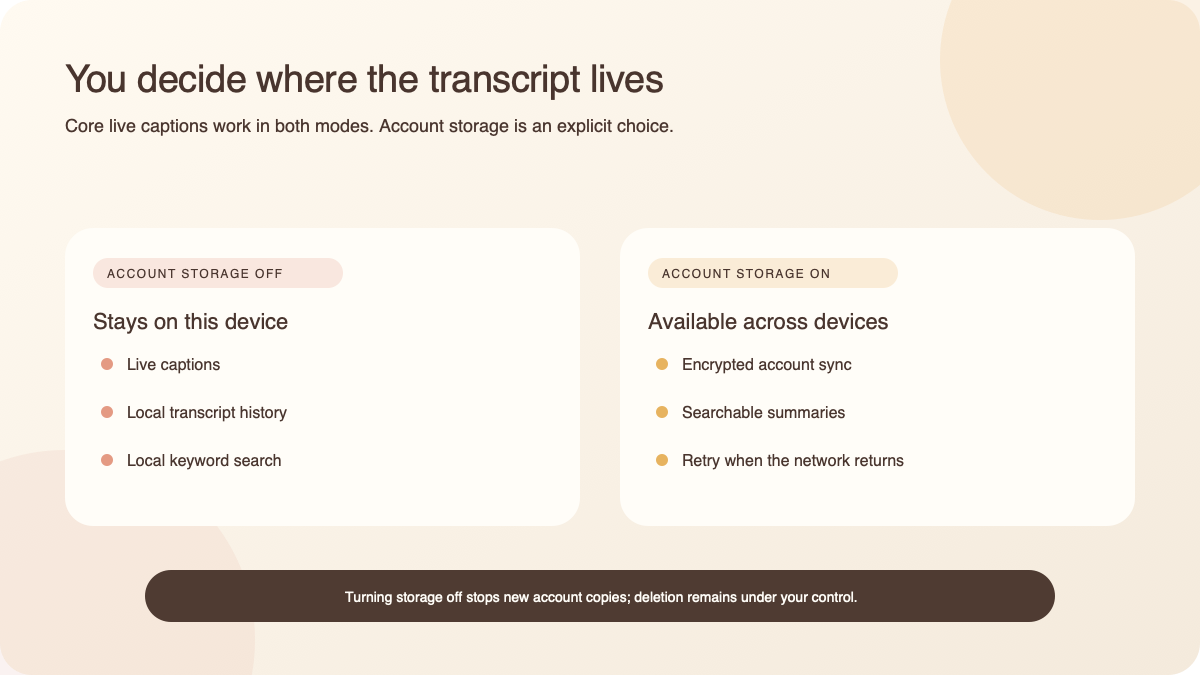
Figure 2: The switch controls whether new sessions create an account copy. Turning it off does not silently erase existing records; owners can delete one session or everything.
One library merges three sources
The transcript library is not a view over a single database table. It combines:
- live sessions stored in this browser’s IndexedDB;
- live sessions already synchronized to the account;
- offline transcripts created by Recording to Text.
If a broadcast exists both on the device and in the account, it appears once with two location indicators. Two copies describe storage state, not two meetings.
Search is layered as well. Room, filename, languages, date, and the summary’s title, participants, topics, decisions and actions form a fast index. When this device still holds the full text, search also covers the transcript itself. When the text only exists in the account, the page does not download every full transcript merely to build a search index on load. That avoids moving a large amount of private text whenever the library opens.
This is why summaries are functional rather than decorative: for long sessions held only in the account, structured fields are the low-cost entry point for finding the right record.
A summary is an index layer, not a replacement for the record
After a transcript is saved, summary generation enters a separate asynchronous queue. Storing the transcript never waits for the model. If summarization is delayed or fails, the original remains readable and downloadable. This separation avoids a common failure mode in AI products: a slow model should not prevent users from saving their own data.
The result is not one vague paragraph. It contains five fields:
- Title gives the session a recognisable name beyond a date or room number;
- Participants support “show me conversations with this person” filtering;
- Topics provide conceptual indexing;
- Decisions separate resolved outcomes from discussion;
- Actions extract responsibility and next steps.
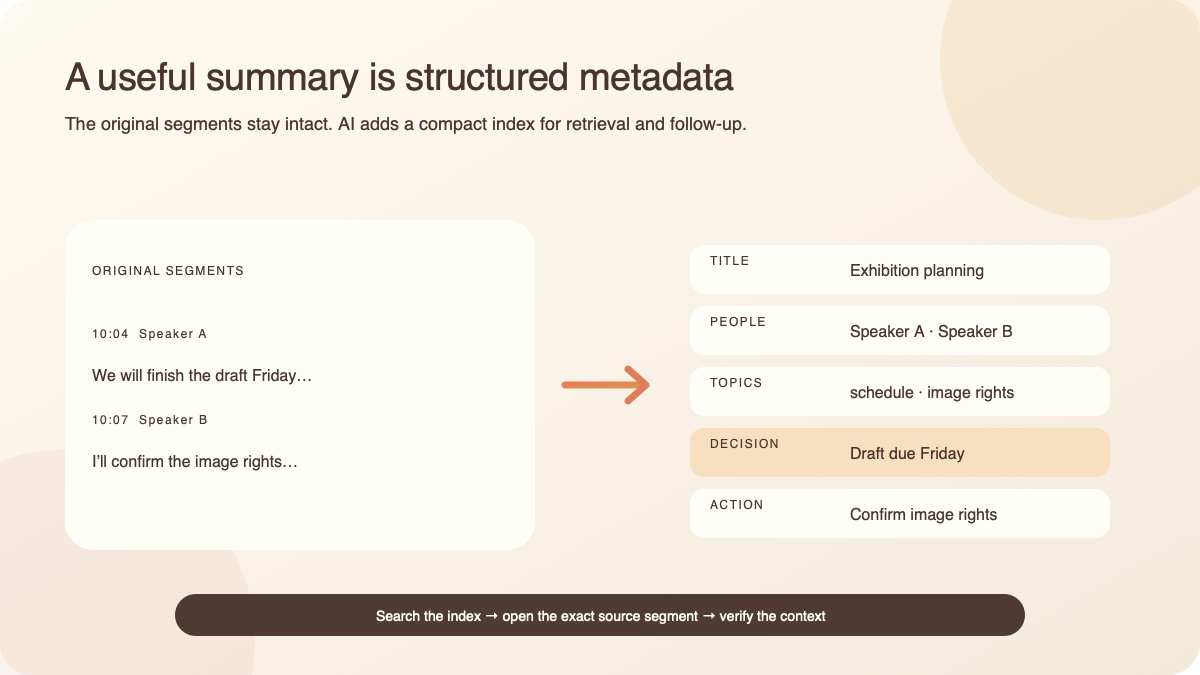
Figure 3: Summary and source coexist. The original provides traceability; the structured fields provide recognition, search and action.
Each summary is identified by account and session. When a device-only transcript later synchronizes to the account, its existing summary is reused rather than duplicated. User-edited titles and actions remain attached to the same session. Every summary field can be edited because a model can reduce organising work, but should not become the final authority on what happened in a meeting.
Privacy control must be part of the architecture
Account storage is off by default. Live captions continue to work normally while the complete transcript stays in the speaker’s browser. Oralion does not upload it simply because a summary might be convenient.
Once enabled, the account copy and its summary belong to that account. Deleting a transcript also deletes its summary; deleting the account removes its transcripts. Oralion does not use stored transcripts to train models. These are not footnotes in the interface—they are boundaries the data model and deletion path must both enforce.
Who should enable transcript storage?
Account storage is useful for recurring project meetings, interviews, classes, community discussions and multilingual collaboration. The time saved is not merely “no note-taking.” It is being able to search by a person, topic or decision weeks later, then return from the summary to the source for context.
If a conversation is highly sensitive, captions are only needed in the moment, or data should remain on one device, leaving the default off is the better strategy. A local copy can still be downloaded manually when needed. This is a data-policy choice, not a lower tier of functionality.
To use it:
- Open Account settings and enable “Save my transcripts to my account.”
- Use Oralion live captions normally; after the session, allow synchronization and summary generation to finish.
- Open Transcripts, search by title, person, topic, decision or action, and correct the summary when necessary.
The purpose of transcript storage and summaries is not to accumulate every sentence forever. It is to make an important conversation retrievable, understandable and actionable when it matters again.